
Managing Sessions: Add, Remove, and Reschedule
very class time slot in Monstro X is a session, and every session lives inside a program. This guide covers the three things you will do most often: adding a session, removing one, and changing its time. Everything below happens on the Programs page.
Where sessions live
Open Programs from the left sidebar. Each program row has its own three-dot (⋮) menu on the right, and a Sessions strip you can expand to see that program’s time slots, grouped by day.
Add a session
Path: Programs ▸ the program’s ⋮ menu ▸ Add Session
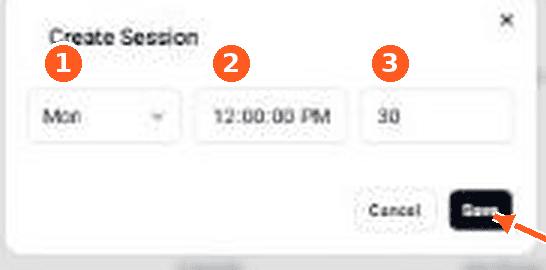
A new session is defined by three things: the day of the week, the start time, and how long it runs (duration, in minutes).

Step 1 · Open the program’s menu
Find the program you want (for example, Boxing 101) and click the ⋮ icon at the far right of its row.
Step 2 · Choose Add Session
In the menu that opens, click Add Session. The same menu also holds Update, Pause, and Archive for the whole program.

Step 3 · Set the day, time, and duration, then Save
Pick the day, set the start time, and enter the duration in minutes, then click Save. The new session appears under that day in the program’s Sessions list.
Remove a session
Path: Programs ▸ expand Sessions ▸ the session’s ⋮ menu ▸ Cancel Session
Removing a single time slot is called cancelling the session. It affects only that one slot, not the whole program.
Step 1 · Expand the program’s Sessions

On the Programs page, click Sessions under the program to reveal its time slots, grouped by day.
Step 2 · Open the session’s menu
Each slot is a chip such as “11
AM – 11 AM” with its own ⋮. Click the ⋮ on the session you want to remove.
Step 3 · Click Cancel Session
Choose Cancel Session — the only item in this menu. The slot is removed from the schedule.

Change a session’s time
There is no “edit time” button on an existing session — a session’s ⋮ menu only offers Cancel Session. To reschedule, cancel the old slot and add a new one at the time you want.
Step 1 · Cancel the current slot
Follow Remove a session above to cancel the slot you want to move.
Step 2 · Re-add it at the new time
Follow Add a session above to add the class back with the new day, start time, and duration.
Tip: the range shown on a chip is simply the start time plus the duration. A 12
PM start with a 45-minute duration shows as “12 PM – 12 PM,” so to move a class 30 minutes later, re-add it with a later start time and the same duration.